How to Share a Google Doc Safely: Roles and Link Access
Originally published September 28, 2019; substantially updated November 7, 2026. Google may adjust button labels or account-specific options, so use the linked official help if your screen differs.
Google Docs is useful for working with clients and teammates, but “send the link” is not the same as choosing who may open or edit a document. Start with Restricted access and grant each person the least powerful role they need. Use a broadly accessible link only when the document is intended for that audience.
Create a document and name it clearly
- Open docs.google.com while signed in to the Google Account that should own the file.
- Create a blank document or choose an appropriate template. Give it a descriptive title before inviting collaborators.
- Add only the information that belongs in this shared file. For a client project, separate sensitive notes, passwords and private customer data into appropriately restricted systems or files.
Choose the right role before you share
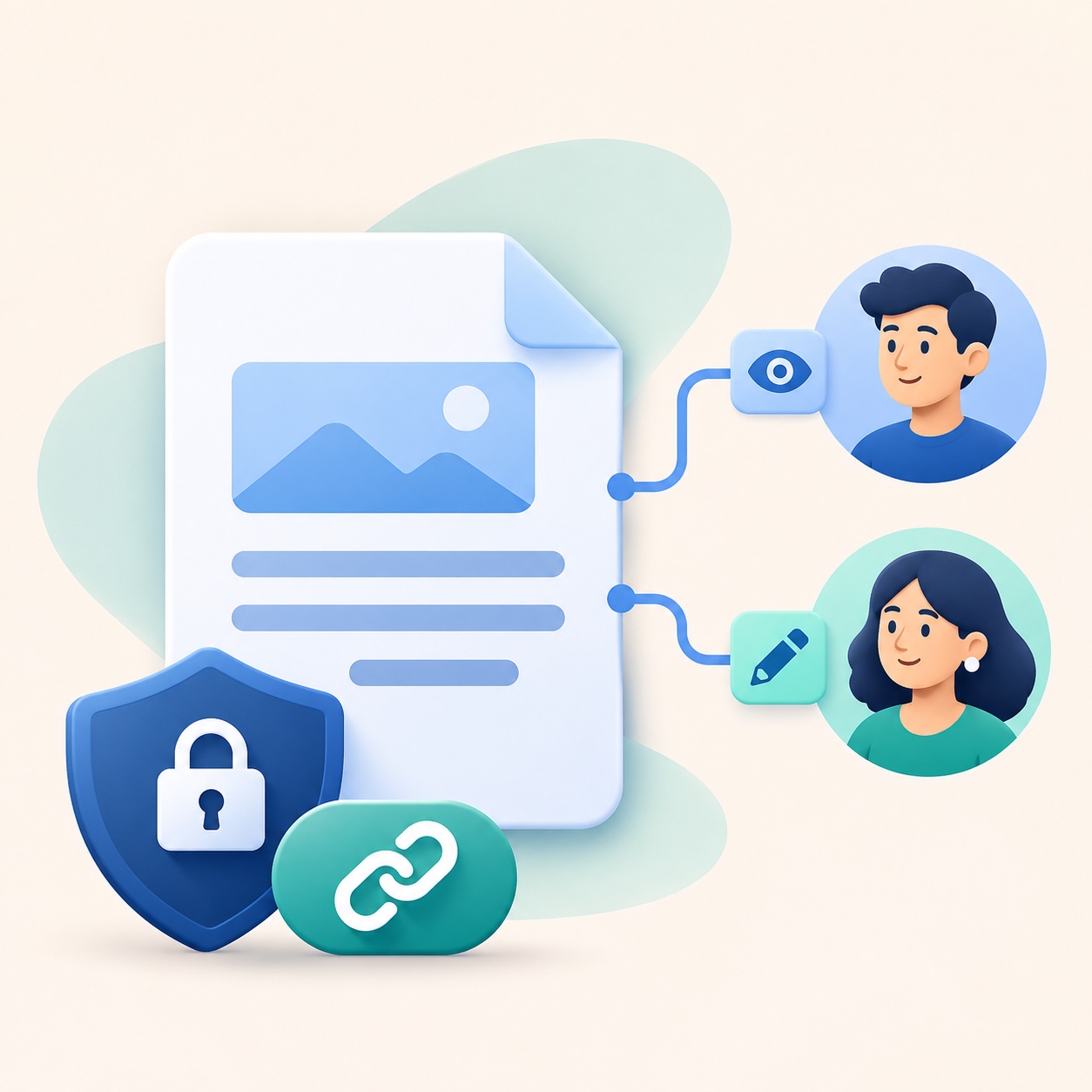
In the document, select Share and add a person’s email address or a group. Then choose a role:
- Viewer can read the file but cannot change its content or add comments. This is a good starting point for review-only access.
- Commenter can leave comments and suggestions without directly editing the document’s content.
- Editor can change the document. Reserve this for people who are actually responsible for maintaining the text.
Review the role and the recipient before selecting Send. An address autocomplete suggestion can be the wrong person; check the full email address. Google’s sharing instructions explain the current controls.
Restricted access versus “Anyone with the link”
Under General access, Restricted means only explicitly permitted people can open the file. A copied link to a restricted document does not automatically grant access. If a recipient sees “You need access,” first confirm which Google Account they are using and whether that exact address was invited; they can also request access from the owner.
Anyone with the link is different: anyone who receives that URL may be able to open the document without an individual invitation. If you deliberately use this option for a broad audience, select Viewer unless comments or edits are essential, and avoid putting private information in the file. Google notes that sharing a file link may reveal the owner’s name and email address.
For details, see Google’s explanations of access levels and access requests and file and folder permissions.
A quick client-team sharing workflow
- Identify the owner and one person responsible for keeping the document up to date.
- Invite reviewers as Viewers or Commenters; give Editor access only to the people who will make changes.
- Check the General access setting and whether the file inherits permissions from a parent folder. Folder-level access may be broader than a file-level setting appears.
- Send the link through the intended channel. Ask the recipient to open it while signed in to the invited account; if they cannot, fix the permission instead of making the file public by default.
- When the project ends, revisit access and remove people who no longer need it. Also review whether Editors are allowed to change permissions or share the file further.
Common mistakes to avoid
- “The link works for me, so it works for everyone.” Owners and Editors may see a file that a recipient cannot. Test the recipient’s access rather than changing General access blindly.
- “Anyone with the link” plus Editor. This is usually far more access than a client review needs. Prefer named collaborators and smaller roles.
- Ignoring a shared parent folder. Google Drive permissions can be inherited. If you need a more restricted file, consider a separate restricted folder or location.
- Leaving old collaborators in place. Sharing settings are worth reviewing when team membership or the project changes.
Bottom line: name the file, invite the right people, choose Viewer/Commenter/Editor deliberately, keep General access Restricted by default, and test the recipient’s access. For the most current controls, rely on the official Google Drive help rather than old interface screenshots.