How to Give Someone Access to Your YouTube Channel Safely
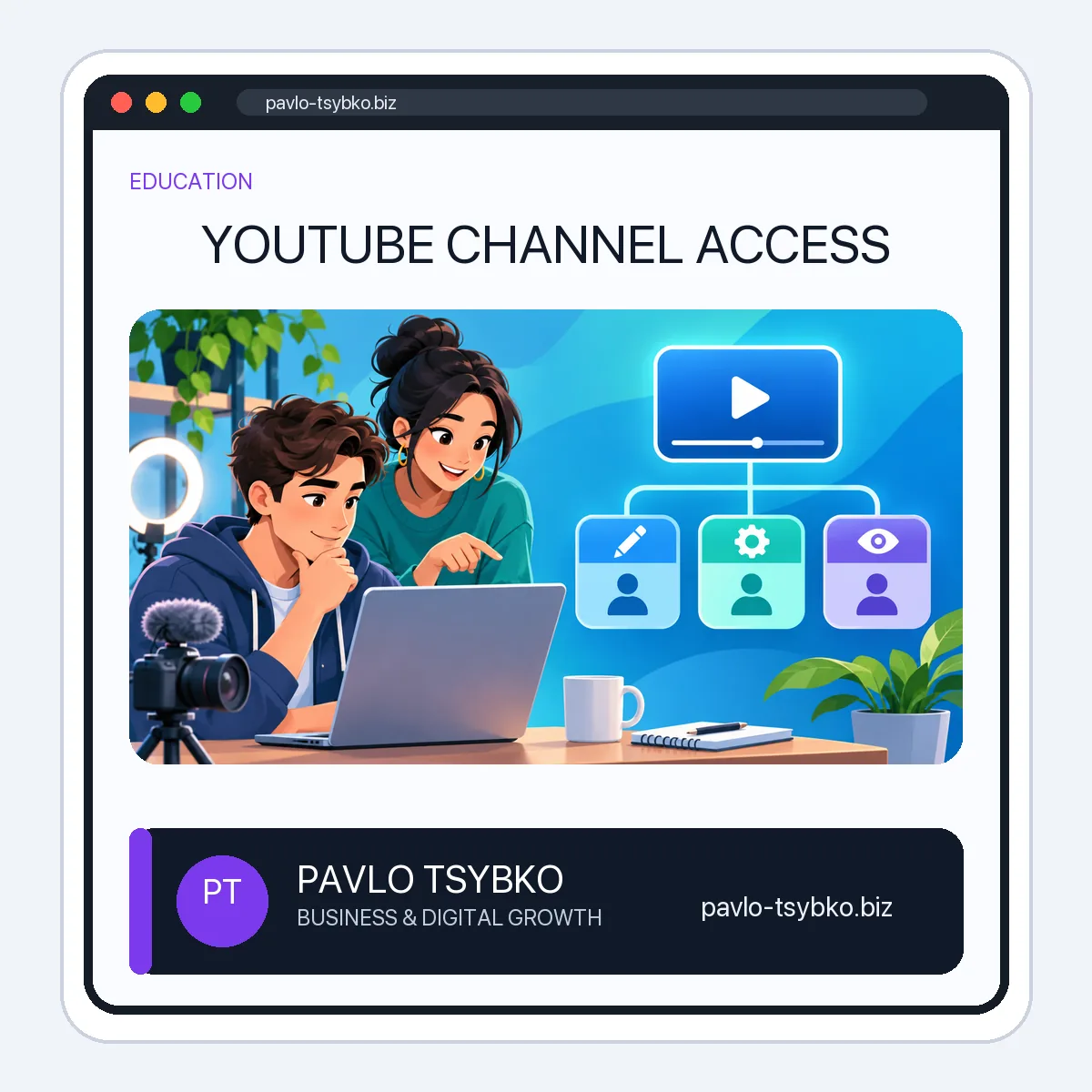
Updated November 3, 2026. If a colleague needs to upload videos, moderate comments or review analytics, do not give them your Google password. YouTube’s channel permissions let you invite a person with a defined role. The exact role depends on the work they need to do, not on their job title.
Before you invite someone
Write down the tasks: view reports, add subtitles, upload and publish videos, or manage other people’s access. Confirm the person has an individual Google account and that you trust them with the channel information the role exposes. Use the lowest role that permits the task; review it when the project changes.
This is a guide to YouTube’s access controls, not a request for anyone’s credentials. Never send passwords, recovery codes or two-factor authentication codes to a contractor. If an agency asks for your login instead of an invitation, clarify why its work cannot be done through a supported role.
How to invite a collaborator in YouTube Studio
- Sign in to YouTube Studio with the account that owns or can manage the channel.
- Open Settings, then Permissions.
- Choose Invite, enter the collaborator’s email address and select the appropriate role.
- Review the email and role before sending the invitation. Ask the person to accept it from their own account; YouTube says invitations expire after 30 days.
- Check the Permissions list after acceptance. If the task changes, edit or remove access there rather than sharing a login.
These steps follow YouTube’s current computer instructions. The interface can change, so use the official help page if a label looks different. You do not need to create a new channel merely to invite a collaborator. If your channel is linked to a Brand Account and still uses Brand Account roles, YouTube explains how to move to channel permissions; check that separate migration process rather than following an old universal workaround.
Which role should you choose?
Read the complete role matrix before granting access. In brief:
- Viewer / Viewer (Limited): useful for someone who needs to inspect channel data but should not edit the channel. The limited variant does not expose revenue data.
- Subtitle Editor: focused on eligible video subtitles rather than general channel management.
- Editor / Editor (Limited): can work on and publish content, but cannot manage permissions or delete published content. The limited variant excludes revenue data.
- Manager: broader operational control, including managing permissions and deleting content. Reserve it for a trusted person who genuinely needs those abilities.
- Owner: the highest level, including channel deletion. Do not assign ownership as a convenient way to let someone upload a video.
Some actions are not supported for delegates on every YouTube surface. The official matrix and limitations, not a generic checklist, should decide the final role. For example, a video editor usually needs an Editor role, while a reporting-only analyst may need only Viewer or Viewer (Limited). Those are examples, not a substitute for checking the actual task and data exposure.
Review and remove access when work ends
Keep a simple record of who was invited, why, by whom and when the access should be reviewed. At the end of a project, open YouTube Studio → Settings → Permissions, inspect each collaborator and remove access that is no longer needed. YouTube documents the removal steps in the same help article. This review is especially important after a contractor changes roles or an agency engagement ends.
If you are planning a channel rather than delegating an existing one, start with the separate YouTube channel setup guide. For an ongoing content and promotion plan, see the YouTube for Business guide. Neither guide requires you to hand over your Google Account password.